


How to Troubleshoot USB Port Problems on Your Computer
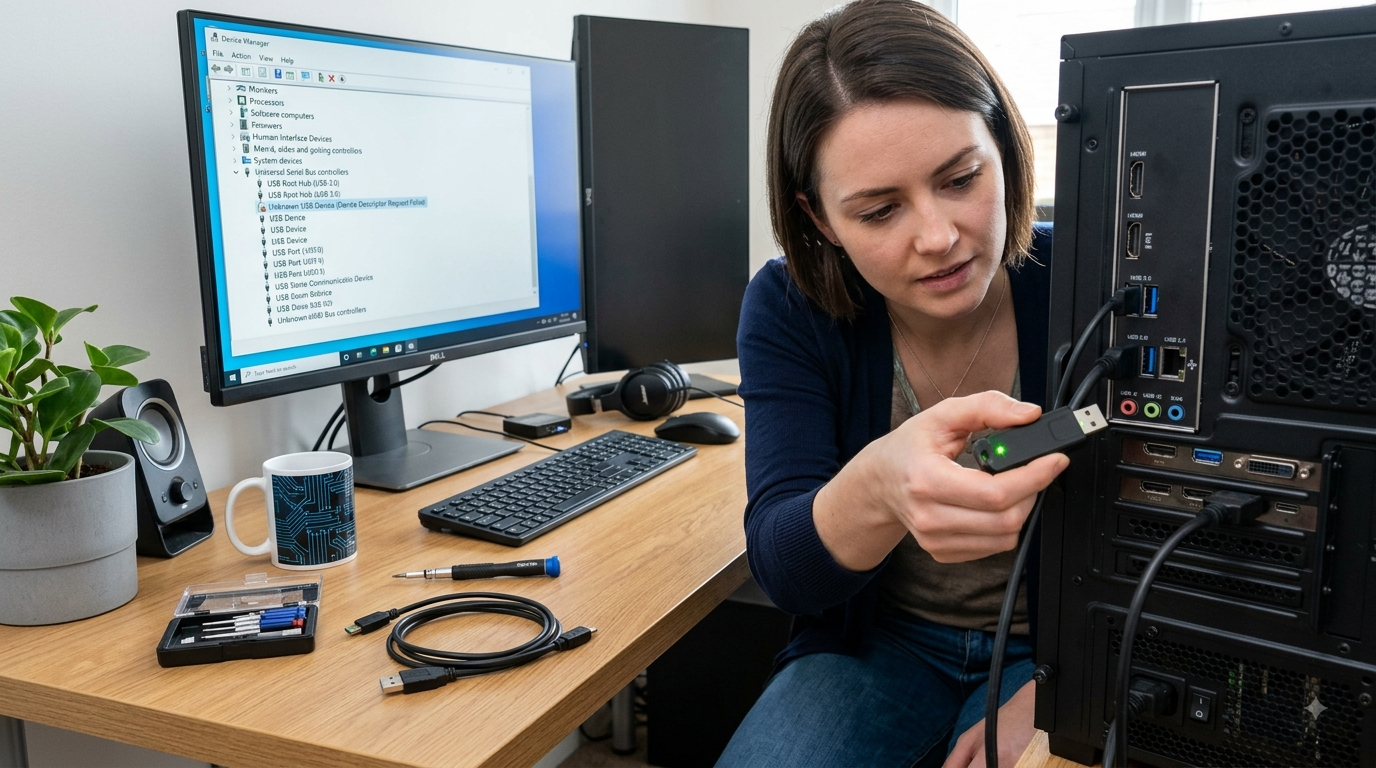
USB ports are among the most frequently used connections on a computer. They allow users to connect keyboards, mice, flash drives, external hard drives, printers, smartphones, webcams, and many other devices. When a USB port stops working, it can quickly become frustrating, especially if you rely on the port for work or important data transfers.
Fortunately, many USB problems can be diagnosed with a few simple steps. The issue may be caused by a damaged port, faulty cable, outdated drivers, software conflicts, insufficient power, or a problem with the connected device. Understanding the possible causes can help you determine whether you can resolve the issue yourself or need professional assistance. If the problem continues, professional computer repair Albany, laptop repair Albany, and computer repair Albany NY services can provide proper diagnostics and repair.
What Causes USB Ports to Stop Working?
USB problems can occur for many different reasons. Sometimes the connected device is responsible rather than the computer itself.
Common causes include:
- Dust or debris inside the port
- Damaged USB connectors
- Faulty cables
- Outdated or corrupted drivers
- Operating system problems
- Power-management settings
- Faulty USB devices
- Physical motherboard damage
- Insufficient power
- Hardware failure
Before assuming that the USB port itself is broken, it is important to test the problem systematically.
Start by Checking the USB Device
The first troubleshooting step is to determine whether the problem is actually the computer.
Connect the device to another known-working USB port. If it works normally, the original port may be the problem.
You can also connect the same device to another computer. If it fails there as well, the device or its cable may be defective.
For example, if an external hard drive isn't recognized, try another USB cable if possible. Similarly, test a keyboard or mouse to determine whether the problem follows the device.
This simple process can help you avoid replacing a functioning computer component unnecessarily.
Restart Your Computer
A restart may seem basic, but it can resolve temporary USB-related software problems.
Operating systems manage USB devices through background services and drivers. Occasionally, these services can encounter errors or fail to recognize connected hardware correctly.
Disconnect unnecessary USB devices, restart the computer, and then reconnect the device after the operating system has fully loaded.
If the USB port starts working again, the issue may have been temporary rather than a permanent hardware failure.
Inspect the USB Port Carefully
Physical damage is another common cause of USB problems.
Look at the port and check for:
- Visible debris
- Bent internal contacts
- Loose components
- Physical cracks
- Signs of corrosion
- A connector that moves excessively
Do not insert sharp objects into the port to clean it. You could damage the internal contacts or create an electrical short.
If the port appears physically damaged, professional inspection is usually the safest option.
Clean Dust and Debris Safely
Dust and debris can prevent a USB connector from making proper contact.
If you notice visible dust, shut down the computer and disconnect its power before cleaning. Use appropriate compressed air carefully rather than pushing objects into the port.
For laptops, take extra care because the USB ports are often mounted directly to delicate internal components.
If the port remains loose or unreliable after cleaning, it may require professional repair.
Try a Different USB Port
Computers often have multiple USB ports, and they don't necessarily all behave identically.
For example, a desktop may have ports on both the front and rear. A laptop may have USB ports on opposite sides.
Try the same device in several ports.
If only one port fails while the others work normally, the issue is likely isolated to that specific port.
If every USB port stops working simultaneously, the problem may involve drivers, operating-system settings, power management, or motherboard-level hardware.
Check USB Drivers
USB devices depend on drivers and operating-system components to communicate with your computer.
A corrupted or outdated driver can prevent USB hardware from functioning correctly.
On supported operating systems, check the device-management settings for warning symbols or devices that aren't being recognized properly.
Installing appropriate driver or operating system updates may resolve compatibility problems.
However, avoid downloading drivers from unknown websites. Use trusted sources and verify that the driver matches your exact computer hardware.
Check Power Management Settings
Some computers use power-management features to reduce energy consumption. These settings can sometimes cause connected USB devices to disconnect or stop responding.
If a USB device repeatedly disconnects, especially when the computer is idle, power-management settings may be involved.
Review the operating system's USB and power settings. If you're unfamiliar with these options, a technician can help determine whether power management is contributing to the issue.
Test USB Devices That Require More Power
Some USB devices require considerably more power than a basic keyboard or mouse.
Examples include:
- External hard drives
- Portable SSDs
- USB hubs
- Certain webcams
- External optical drives
If a high-powered device isn't working correctly, try connecting it directly to the computer rather than through an unpowered USB hub.
A powered USB hub may also be appropriate for certain setups.
Check Whether the USB Device Is Recognized
If the computer provides power to the device but doesn't recognize it, the issue may involve software, drivers, storage formatting, or the device itself.
For example, a USB flash drive may light up but fail to appear in the file-management system.
Don't immediately format a drive if it contains important information. Formatting can erase data, and a drive that suddenly becomes inaccessible may have an underlying hardware problem.
Be Careful With External Storage Devices
USB-connected storage devices deserve extra attention because they may contain valuable data.
If an external hard drive or flash drive repeatedly disconnects, produces unusual sounds, or becomes inaccessible, stop unnecessary use and consider professional assistance.
Repeated attempts to access a failing drive can sometimes make data recovery more difficult.
Maintaining regular backups is the best way to reduce the impact of USB storage failure.
When a USB Port Has Physical Damage
Sometimes troubleshooting cannot fix a USB port because the physical hardware is damaged.
Common signs include:
- The connector feels loose
- Devices disconnect when the cable moves
- The port only works at a certain angle
- The computer doesn't detect any device
- The port has visible physical damage
- The device repeatedly loses power
In these situations, continuing to force USB connectors into the port can make the damage worse.
Professional repair may involve replacing the port, repairing its connection to the motherboard, or addressing another internal hardware issue.
Laptop USB Port Problems
Laptop USB ports can be particularly vulnerable because they are frequently used while the computer is being moved.
Accidentally pulling a connected cable can damage the port or its internal connection.
If you're experiencing persistent USB problems on a laptop, laptop repair Albany specialists can inspect the port, motherboard connection, power delivery, and related components.
A professional evaluation is especially useful when multiple USB ports fail or when the problem is accompanied by charging, battery, or other hardware symptoms.
When to Contact a Computer Repair Professional
You should consider professional assistance when:
- Multiple USB ports stop working.
- A port is physically damaged.
- USB devices repeatedly disconnect.
- External storage becomes inaccessible.
- The computer shows hardware errors.
- Driver troubleshooting doesn't resolve the problem.
- The port becomes unusually hot.
- Other hardware problems appear at the same time.
Experienced computer repair Albany technicians can test both hardware and software components to identify the actual cause instead of replacing parts unnecessarily.
For customers searching for dependable computer repair Albany NY, professional diagnostics can help determine whether the problem is related to the USB port, motherboard, operating system, drivers, cable, or connected device.
How to Prevent Future USB Problems
A few simple habits can reduce USB-related issues:
- Don't force connectors into ports.
- Remove cables by holding the connector rather than pulling the cable.
- Keep ports clean and protected.
- Avoid placing excessive pressure on connected cables.
- Use quality USB cables and accessories.
- Disconnect external storage properly.
- Avoid unnecessary USB hubs.
- Keep operating system and drivers updated.
These habits can extend the useful life of your computer's USB connections.
Conclusion
USB port problems can result from something as simple as a faulty cable or software issue, but they can also indicate physical damage or a more serious hardware problem. Testing the connected device, trying another port, restarting the computer, checking drivers, and inspecting the connection can help identify the cause.
If a USB port remains unreliable or shows signs of physical damage, don't continue forcing devices into it. Professional computer repair Albany, laptop repair Albany, and computer repair Albany NY services can diagnose the problem and determine whether the port can be repaired or needs replacement.
By troubleshooting USB problems early and handling your ports carefully, you can prevent minor connection issues from developing into more expensive computer repairs.

 English
 Arabic
 French
 Spanish
 Portuguese
 Deutsch
 Dutch
Dutch
 Italiano
 Russian
 Romaian
 Portuguese (Brazil)
 Greek
Greek